Categories

Showing posts with label Mac Mini. Show all posts

Wednesday, March 27, 2013

What If You Want Windows on Your Mac Mini?

Windows on Mac


So...you've purchased a Mac Mini (or any Mac for that matter) and you aren't ready to leave Windows behind just yet?  You like your Mac Mini but you miss the familiarity of Windows.  I know how you feel...I've been there.  I promise you have made a great choice by purchasing a Mac.  Once you learn more about it and use it more, the software will make sense and you may begin to prefer it to Windows.  But in the meantime, don't worry, Apple has made it so your transition doesn't have to be so quick.  Let's take a look at your options for having Windows on your Mac Mini.

Virtual Network Computing (VNC)

If you still have a Windows computer in your home, the easiest way to get Windows on your Mac Mini is to remotely connect to your Windows computer.  Normally, you want to have your Mac Mini and your Windows computer on the same network.  There are some options for when they are not on the same network but it's not important here.  For your Windows computer, you need to download, install, and configure the TightVNC Server application.  The Mac Mini has a VNC client built into the operating system.  It's called Screen Sharing.  If you want to connect your Mac Mini to the Windows computer, simply click:

Go
Connect to Server
Then enter "vnc://" followed by the IP address of your Windows Computer.

Now, you are ready to go and you have Windows on your Mac Mini.  The downside is the lack of audio.  If you desire audio, you will want to look at the next two options.

Boot Camp

The next option comes standard on the Mac Mini and it's called Boot Camp.  Boot Camp allows you to create a separate partition on your hard drive to install Windows.  This will give you the option to either boot into Mac OSX or Windows at startup.  Some pros for this installation is you will have audio and there is no lag.  The Mac Mini should perform like a Windows computer.  Some people even claim Windows may run better on a Mac.  There may be some driver issues to work through.  The con for this is you can only run one operating system at a time.  For more details about Boot Camp or for the step by step instructions to install it, go here.

Virtual Machine

The last option (and my preferred method) is to install Windows on a virtual machine (VM).  A virtual machine is just running a virtual computer on your existing computer.  This is good if you want to run multiple operating systems.  Some people also use VM's to test software or to add another layer of security to their computer.  There are a few software options for creating and running virtual machines but the most popular are VMWare Fusion
Buy VMware Fusion 5 - The Best Way To Run Windows on Your Mac!
and Parallels.
Limited time offer - 25% off Parallels Desktop 8 for Mac - Run windows on your Mac - Faster
Both offer you a way to run Windows in a virtual machine.  The positive is that you have a Windows computer on your Mac.  The VM will perform as a normal computer would.  The negative is that you have a Windows computer on your Mac.  This sounds bad but I promise I'm not taking a shot at Windows.  I just mean your Mac Mini's operating system will have to share resources (storage space and memory) with the VM.  You just want to make sure your Mac Mini is up to the challenge.  I recommend at least 4 GB's of RAM and a dual core processor.

So there you have it!  Those are some options to put Windows on a Mac Mini.  You can use VNC, Boot Camp, or install a virtual machine.  Then you can continue to use any Windows software you've already purchased.  This is just a brief summary of your options.  You just have to decide which is the best option for your needs.

Did you find these tips helpful?


Monday, February 25, 2013

The Refurbished Mac Mini Story Part 3: The Ending?

Refurbished Mac Mini

The Refurbished Mac Mini Story Part 3: The Ending?


Before you read this, make sure you read the following first:

The Refurbished Mac Mini Story Part 1: The Hardware

The Refurbished Mac Mini Story Part 2: The Software


Now that I had the hardware and software set up the way I wanted, I have used the refurbished Mac Mini for years.  In fact, I'm still using it now.  Since it is a pint sized computer, it was able to grow with my needs.

In the beginning, I only needed it to function as a media center/media player.  I was streaming media from my Windows tower to the Mac Mini.  Later, it replaced the Windows tower altogether when I added an external hard drive.  So today, it does most of the heavy lifting for my computing needs.  I use my Macbook for every day use such as web browsing, checking emails, and creating documents.  Anything beyond that, I turn to the Mac Mini.  I just remotely connect to it from my Macbook and then work with it.

Sadly, the refurbished Mac Mini has been with me for a long time, but there are only so many upgrades you can make.  It has a Solid State Drive and 4 GB of memory (only recognizes 3 GB).  It is fine for normal computing but too much for the tasks I ask of it:  Media center, storage server, iTunes server, watching web based video on big screen, creating virtual networks, and running virtual computers.

I have been looking at the new Mac Minis and their specs seem to be inline with what I require.  As usual, the price is a little more than I would like to spend.  Based on my experience with my Mac Mini, I think I will probably purchase another refurbished Mac Mini in the near future.  I will try to find a role for my current Mac Mini.  Maybe something like this:

Refurbished Mac Mini in Car


In, conclusion, consider buying a refurbished Mac Mini if you are looking for a Mac Mini.  From my experience, it looks brand new, will save you money, and you can upgrade it with your savings.  This is the least expensive, smallest footprint, computer Apple offers.  This is a great computer to learn about Macs.  This little computer is powerful and always ready to work!

The end?

Monday, February 18, 2013

The Refurbished Mac Mini Story Part 2: The Software

The Refurbished Mac Mini Story

The Refurbished Mac Mini Story Part 2: The Software


Before you read this, you should read The Refurbished Mac Mini Story Part 1: The Hardware first!

Now that I had purchased my first Mac, the refurbished Mac Mini and upgraded the RAM, I was so excited!  I connected the Mac Mini to a keyboard, mouse, and monitor for initial setup.  The operating system was different from Windows but not completely different from Linux.  I had played with a few Linux installations in the past.  I had a few growing pains as I used my Mac because I just didn't know where to find some features so I turned to the search engines for guidance.  Soon I was learning more and more about Macs.  And liking it more with everything I learned.

Since I wanted to use the refurbished Mac Mini for a media center computer, I started with Front Row, the media center software that was included in the operating system.  I liked Front Row but there were some features that were lacking for my entertainment desires.  I felt like the Mac Mini was capable of more so once I again, I turned to the search engines until I found OSXBMC (now called Plex).  It was free media center software and I was very excited about it.  I was a little familiar with Xbox Media Center and this was similar but for Macs.  The team behind it was constantly working to improve the software so there were the occasional bugs, but overall, it was great.  For starters, this software played all media formats and it made it easier to organize the media I had.  At the time, I still had a Windows tower for my media storage and I just streamed the media to my Mac Mini.  This allowed me to keep my loud (due to multiple fans) tower out of my living room.  Later, I added an external hard drive to the Mac Mini and retired the Windows tower.  Note:  You should have a backup solution if you do this.  You never know when the external hard drive will fail.  Next, I setup Screen Sharing on  the refurbished Mac Mini.  I used TightVNC on my windows laptop (later replaced by a Macbook) so that I could add the Mac Mini to my entertainment center and control it from my laptop.  Once I purchased my Macbook, this capability was built in so I no longer needed TightVNC.  I also added the Caffeine app to keep my Mac from going into sleep mode.  Now, my refurbished Mac Mini was ready to be my media center computer.

This was fine for a while but I wanted to find more use for my refurbished Mac Mini.  It did the job as media center very well but it was a computer, a Mac at that.  I knew it could do more!  Later, I installed VMWare Fusion so I could test and run other operating systems.  I use Screen Sharing to access the Mac Mini, then operate the virtual machines so everything appears on my Macbook while the Mac Mini is doing the hard work.  Also, recently I cancelled my cable television service.  Using the web browser, I still have access to plenty of television shows using different services such as Project Free TV and Hulu+ (on Apple TV).  It's not always as convenient as cable but it works and I can watch whenever I choose.

If you have or decide to buy a Mac Mini, the software listed above can be helpful.  There are more options depending on how you want to use your Mac Mini.


Continue to The Refurbished Mac Mini Story Part 3: The Ending?

Monday, February 11, 2013

The Refurbished Mac Mini Story Part 1: The Hardware

The Refurbished Mac Mini Story


The Refurbished Mac Mini Story Part 1: The Hardware


Once upon a time, Apple created a Mac Mini around 2007.  It was the entry level model with 1.83 GHz Core 2 Duo processor and 2 GB of RAM.  At this time, this wasn't the best specs but it wasn't bad either.

Well, someone decided to purchase this Mac Mini but for whatever reason, they decided to return the Mac Mini.  I'd like to think it was so they could purchase a more expensive Mac.

Apple accepted the return and inspected the Mac Mini, corrected any issues, and decided it was still in great condition.  They wanted to sell it again but they couldn't sell it as new because it no longer was.  Apple decided to label it "Refurbished" and sell it for a lower price.  The refurbished Mac Mini was now for sell.

Around this time, I was researching Apple computers but I didn't want to  spend a lot of money to get a Mac.  I wasn't completely sold on the idea, thinking all computers are the same.  Around this time my coworkers and I were discussing ways to create media center PC's.  One coworker thought a Unix computer was the way to go while another thought a Windows computer was the best choice.  I wasn't so sure.  I had my eye on an Apple computer running OSX, but I wasn't sure about my software options.

Since I was thinking about a media center computer, I thought most Mac computers were too expensive and large for my purpose.  I wanted a computer that could easily sit in my entertainment center that wasn't  loud and looked like it belonged there.  Searching through the Apple site, I found the Mac Mini and instantly liked how Apple had built a computer in such a clean, compact package.  But even the entry model was a bit more than I was willing to pay, just slightly.  Somehow I found Apple's refurbished computer section.  Unfortunately, they didn't have any refurbished Mac Minis.  I kept revisiting Apple's refurbished section week after week until one day, I saw the refurbished Mac Mini.  

The refurbished Mac Mini was the entry model but was about $100 cheaper than normal.  I had started researching and found a company that specialized in Mac upgrades.  At this time, I could upgrade to 4 GB of RAM for about $100.  I liked that idea so much that I purchased the refurbished Mac Mini saving $100 and then used the savings to purchase the RAM for upgrade.  I purchased my first Mac!

Continue to The Refurbished Mac Mini Story Part 2: The Software!!!!


Wednesday, January 2, 2013

Screenshots on a Mac

Partial Screenshot

Screenshot on a Mac

I'm not sure if you can tell this, but the picture above is a screenshot.  I took it from Apple's website.  No matter how you use your Mac, I'm sure one day you will need to take a screenshot of something.  There will be times that you just don't want to take a complete screenshot.  You only need one part of what's being displayed for whatever reason.  Well, the good news is that these features are already available in Mac OSX.

Here are a few Mac screenshot commands that you may find helpful in your day to day tasks:

  • Command-Shift-3:  Take a screenshot of the screen, and save it as a file on the desktop
  • Command-Shift-4, then select an area:  Take a screenshot of an area and save it as a file on the desktop
  • Command-Shift-4, then space, then click a window:  Take a screenshot of a window and save it as a file on the desktop
  • Command-Control-Shift-3:  Take a screenshot of the screen, and save it to the clipboard
  • Command-Control-Shift-4, then select an area:  Take a screenshot of an area and save it to the clipboard
  • Command-Control-Shift-4, then space, then click a window:  Take a screenshot of a window and save it to the clipboard
In Leopard and later, the following keys can be held down while selecting an area (via Command-Shift-4 or Command-Control-Shift-4):

  • Space, to lock the size of the selected region and instead move it when the mouse moves
  • Shift, to resize only one edge of the selected region
  • Option, to resize the selected region with its center as the anchor point
These commands came from MacRumors.  For more in-depth Mac screenshot commands, you can view them here.

Did you find these tips helpful?

If you found this helpful, make sure you leave a comment, share it, "Like" us on Facebook, and follow me on Twitter!

Sunday, November 25, 2012

Mission Control on Mac

I haven't really used Mission Control on my Mac very often.  I think that was because I hadn't spent any time to learn about it.  After taking the time, I can already see ways that it can help me improve my productivity while keeping my workspaces neat and tidy.  If my computer were a desk, it would be a cluttered desk.  Mission control clears up the clutter.  It may take a little bit of time to get used to but I think it will be beneficial.

The videos below offer a quick tutorial (1st one) to get you started or a more detailed tutorial (2nd one) that covers gestures, special keys, and even settings to use.  So, it's your choice.  You can learn and implement quickly or you can dive deeper and master Mission Control.  "Master" may be stretching it.  Enjoy!


Monday, November 12, 2012

Apple's Fusion Drive

MacMall - Your #1 Apple Superstore!

When it comes to hard drives, most people prefer the speed of SSDs (solid state drives) but the storage capacity of traditional hard drives.  Apple's Fusion Drive combines the best of both worlds by taking a SSD and a traditional hard drive, then making them appear as one hard drive.  The new Mac Minis come with a 5400 rpm hard drive which is good to conserve energy but not good for performance.  By adding Apple's Fusion drive software and a SSD to the Mac Mini, the little computer becomes a powerhouse.  Just check out the video below.

If you take a look at the link below as well, make sure you read the comments.  I think one of the commenters provided a really nice explanation of how Fusion Drive works.  He mentioned that data goes to the SSD first providing the speed and performance.  Then as the SSD fills, the data overflows into the traditional drive extending the storage capability.  For me, that provided a clearer picture and better understanding.


Apple's Fusion Drive


Tuesday, November 6, 2012

The New Mac Mini!!!

Apple Mac mini dual-core Intel Core i5 i5 2.5GHz, 4GB RAM, 500GB Hard Drive, Intel HD Graphics 4000, OS X Mountain Lion

"Hello.  Is it me you're looking for?" (Lionel Richie)  I continue to be smitten by the Mac Mini and it's only a matter of time before I get the new Mac Mini.  It's still pretty rare to have such a powerful computer in this small of a form factor.  The latest update isn't one that  you will notice when you first remove the Mac Mini from its box.  All of the updates are on the inside.

The new Mac Mini offers USB 3.0 for faster data transfer.  It also has faster graphics and gives you the option to power this little beast with a quad core processor.

Still the Mac Mini is small enough to place practically anywhere.  Mine sits on my entertainment shelf easily and takes up way less space than my Xbox 360.  I just use my Macbook (that I'm always on) to connect to the Mac Mini  and control it.  I have a wired keyboard with a built in trackpad just in case I cannot access it remotely.

If you are thinking about buying a Mac at a reasonable price, I recommend the Mac Mini.  The complete review is below.


Mac Mini Review


Wednesday, October 24, 2012

Thoughts on Mac Mini and Benchmarks


JUST ANNOUNCED! The new Mac mini from MacMall.com

I enjoy Apple products overall but this is my favorite Mac...the Mac Mini!  I'm not sure how many Mac Minis Apple has sold.  I don't know if they are very popular.  Still, I think they are great.  This was the first Mac I ever purchased.  I, like many people, thought Macs were too expensive.  After looking through Apple's website, I came across the Mac Mini.  It said something like "BYODKM (Bring your own display, keyboard, and mouse."  At the time, I was building my computers and I thought, "I do already have those things."  This made the Mac Mini my Mac of choice.  It had a low entry price (compared to other Macs) and decent specs considering the size of this computer.  I was able to get a refurbished model from the Apple store and saved about $100...which I later used to upgrade the memory.

Well, that's what I have to say about the Mac Mini (for now).  The article below talks about what other people are saying about the new Mac Mini models and includes the latest benchmark information.  Also, there is a link to great free software to add to a Mac Mini or any Mac.  Enjoy!  Let me know what you think.

Thoughts and Benchmarks

Great Free Software for Macs

Tuesday, October 23, 2012

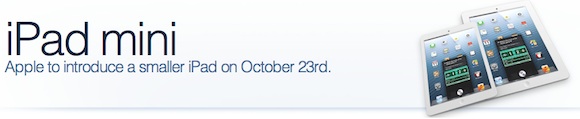
Apple Announcements: iPad, iPad Mini, 13 Inch Macbook With Retina, iMac, and Mac Mini


MacMall Car Giveaway - Win A Fiat 500 Pop Car

The announcements have been made and it looks like the rumors were pretty much on target.  For Apple product lovers, there are some new toys to enjoy.  This includes the Fourth Generation iPad, the super-thin iMac, the 13 inch Macbook Pro with Retina, the updated Mac Mini, and of course, the iPad Mini!  As usual, I am interested in the Mac Mini...the tiny workhorse.  But it was the iMac that shocked me; I was surprised to see the thin iMac.  I'm not trying to start the next rumor, but after seeing the new iMac, I can't help but wonder what Apple could do with the iTV...if they were to make it.


MacRumors did a round up of the announcements for the day.  Take a look at the articles below.  There are a couple of videos at the bottom as well.  Enjoy!  And let me know what you think about Apple's updated and new products.

Apple Introduces New 7.9-Inch iPad Mini Starting at $329
Apple Announces Fourth-Generation iPad with Lightning Connector, New A6X Chip
Apple Announces Lighter, Thinner iMac Models with Fusion Drive
Apple Introduces 13-inch MacBook Pro with Retina Display
Apple Introduces New Mac Mini With Faster Processors and Quad-Core Option

First Impressions and Hands On with iPad Mini
Hands On with Apple's New 13-Inch Retina MacBook Pro

Some Apple Retail Stores Offering 30-Day Window to Exchange iPads for New Model
Apple's New 'Fusion Drive' Not a Typical Hybrid Drive
iPad Mini Supports Siri, iPad 2 Still Doesn't
Apple Devices to Support Many New International LTE Networks In Coming Months
21.5" iMac Has No User-Upgradable RAM; 27" Has Four Accessible RAM Slots
Apple Announces Updated iBooks App With Continuous Scrolling
Apple Updates iBooks Author with New Templates and Remote Update Feature


MacMall Car Giveaway - Win A Fiat 500 Pop Car


Monday, October 22, 2012

Apple Media Event Around the Corner

MacMall Car Giveaway - Win A Fiat 500 Pop Car

Apple's Media Event is Tuesday, October 23, 2012.  This media event is supposed to reveal updated iMacs, 13 inch Macbook Pros with Retina, and Mac Minis (my favorite!).  But of course, the main attraction is the iPad Mini.  Apple has had huge success with the full size iPad but never entered into the smaller tablet market.  Apple's competition seized the opportunity and began offering smaller tablets.  Now, Apple is about to enter the market with the iPad Mini.  How do you think the iPad Mini will be received?

Below is an article that discusses the venue for the Apple Media Event...the California Theatre.

California Theatre for Apple Media Event

Saturday, October 20, 2012

Apple Media Event Rumor Roundup

MacMall Car Giveaway - Win A Fiat 500 Pop Car

There are a lot of rumors for the Apple Media event expected for next Tuesday.  MacRumors has done a rumor roundup so I have it for you below.  New information has surfaced since then in regards to pricing of the new products.  Those links are also below.  You can look through all the latest information below and let me know what you think about the rumors and the expected prices as well.

Rumor Roundup

13 Inch Macbook Pro with Retina Pics

Updated iPad and Possible Pricing

iPad Mini Pricing


Wednesday, October 17, 2012

Apple Media Event Invites and More


MacMall Best Sellers


Apple sent out invitations for its next media event planned for Oct. 23rd.  We've already heard rumors about what will be unveiled.  The iPad Mini is probably the most anticipated but there are rumors that Apple will also release updated iMacs, 13" Macbook Pros with Retina, and Mac Minis.  Will we see all, some, or none?  I think the iPad Mini will be the highlight and will definitely be unveiled.  The other products are hopefuls...users hope to see updates on these.  We will see what Apple has to say on Oct. 23rd.

There are also rumors of the iPad Mini launching on Nov. 2nd and there are pictures of iPad Mini displays.  More details are below.


Apple Media Event Invites

iPad Mini Launch Building Speculation

iPad Mini Displays


Monday, October 15, 2012

Apple May Launch New Mac Mini

Mac mini Dual-Core Intel Core i5 2.5GHz, 4GB RAM, 500GB Hard Drive, AMD Radeon HD 6630M, Thunderbolt Mac mini Dual-Core Intel Core i5 2.5GHz, 4GB RAM, 500GB Hard Drive, AMD Radeon HD 6630M, Thunderbolt
Mac mini Dual-Core Intel Core i5 2.5GHz, 4GB DDR3 memory, 500GB SATA hard drive, AMD Radeon HD 6630M graphics processor, 802.11n Wi-Fi, Bluetooth, Gigabit Ethernet, HDMI, SDXC card slot, Thunderbolt

Beyond a doubt, I had to tell you about this rumor!  I am a huge fan of the Mac Mini and it was the first Mac I bought.  I purchased my Mac Mini in 2007 I think and I still use it every day.  It currently functions as my media server and media center.  I think it is a great device for anyone wanting to move to a Mac while saving money.  You provide the monitor, keyboard, and mouse...but you probably already have them anyway.  The Mac Mini takes up so little space.  It's awesome!

Anyway, the latest rumor is that Apple will introduce an updated Mac Mini along with the iPad Mini.  Just based on their names, it makes some sense.  I don't see Apple making any extreme updates but it may be tempting enough for me to move up from my 2007 model.  It will be a sad and happy day if I retire my Mac Mini and get a new Mac Mini.  More details on the launch are below.  Is anyone else as excited as I am?


Possible Mac Mini Launch


Mac mini Dual-Core Intel Core i5 2.3GHz, 2GB RAM, 500GB Hard Drive, Intel HD Graphics 3000, Thunderbolt Mac mini Dual-Core Intel Core i5 2.3GHz, 2GB RAM, 500GB Hard Drive, Intel HD Graphics 3000, Thunderbolt
Mac mini Dual-Core Intel Core i5 2.3GHz, 2GB DDR3 memory, 500GB SATA hard drive, Intel HD Graphics 3000 processor, 802.11n Wi-Fi, Bluetooth, Gigabit Ethernet, HDMI, SDXC card slot, Thunderbolt

Wednesday, October 3, 2012

Installed A SSD in 13" Macbook and Mac Mini


OCZ Technology 256GB Octane Series - Solid state drive (SSD) - Internal - 2.5" - SATA III (OCT1-25SAT3-256G) only $139.99 after Mail-in Rebate. Ends 10/10

I have a Macbook and a Mac Mini. You may know this already. Recently I decided to upgrade them both with Solid State Drives (SSD). Both had 80 GB drives and I was looking to increase storage and performance. I looked around the internet and was able to find 2- 120 GB SSDs at a reasonable price. Due to the price of SSDs, I couldn't find larger SSDs for a price I was willing to pay. After the fact, I found the special sale above and the company also had great prices on Apple computers and accessories. You may want to check it out and get the deal I missed. Here is a video of a hard drive replacement…pretty easy. The fast forward noise is a little cheesy but good information nonetheless. During the video, you can also see where the memory is located…2 modules stacked on top of each other...if you decide to upgrade it later.


Sunday, September 30, 2012

Mac Desktops


What You Need to Know About Mac Desktops


What set the distinction of Mac desktops were the reasons why they became the top choices of business and creative professionals: exceptional performance, unique style, and user-friendly applications. But before choosing your Mac desktop, it is necessary to know which of the choices best fit your lifestyle and professional needs.

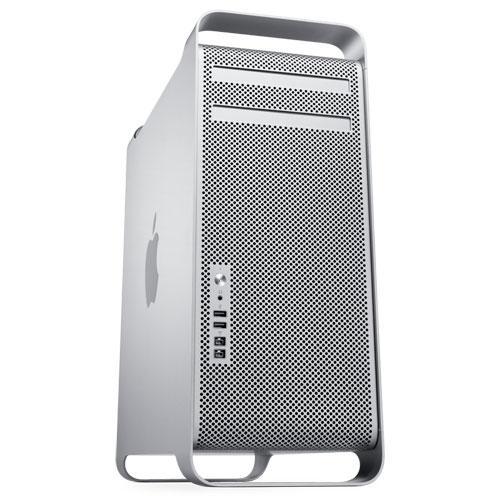
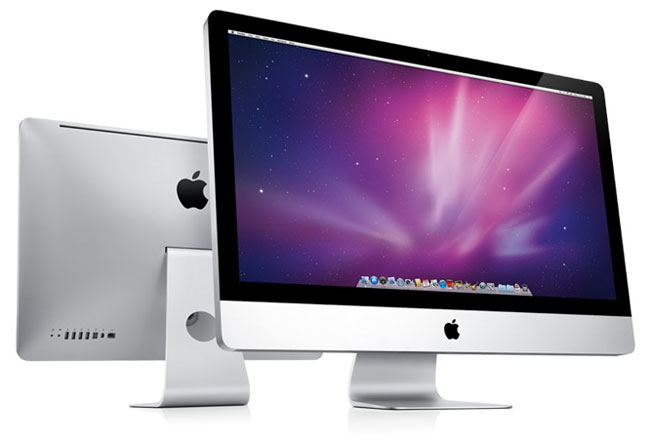
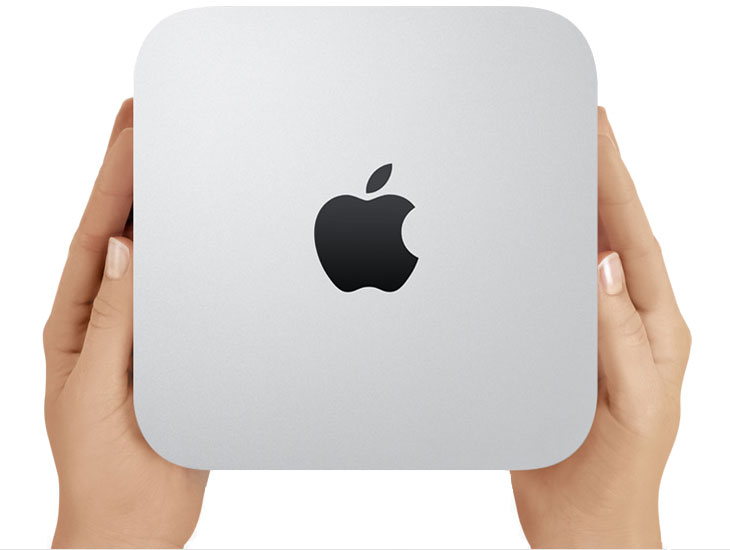
The diversity of the Mac desktop line has offered many options to enjoy the Mac experience. The current Mac desktop collection features three distinct yet equally remarkable machines you can choose from: the Mac mini, the iMac, and the Mac Pro. Get to know more of these items and find out which of the three desktops suit your needs the most for your enjoyment.

Speed and Power:
How Fast Do They Run?

In desktops, performance is measured by the speed of the processor and the size of the memory. Mac desktops come with different configurations to cater to a wide range of advanced users and beginners with varying performance requirements.

The new Mac Pro is the fastest, most powerful Mac ever, powered by either Intel Xeon Nehalem or Westmere processor, or even both. The Intel Xeon processor comes with a single-processor, quad–core configuration at speeds up to 3.2GHz; while the Westmere series is available in both quad–core and 6–core versions. And since Mac Pro can operate with the two processors, you can have a 6–core Mac Pro at 3.33GHz, an 8–core system at 2.4GHz, or, to max out your performance, a 12–core system at up to 2.93GHz.

If your tasks are less demanding, the iMac offers quad-core Intel i7 processors with up to 2.93GHz and supports up to 8GB of RAM; while the Mac mini has Intel Core 2 Duo processors with speed that reaches up to 2.66GHz and supports up to 8GB of RAM.

Multimedia Experience:
How Enjoyable Are Macs?

Your digital life will go beyond the usual with Mac desktops, as they use the latest wireless technology complemented by cutting-edge graphics and simple-to-use applications.

For instance, the Mac Pro redefines graphics capabilities through the ATI Radeon HD 5770 with 1 GB GDDR5 SDRAM memory, giving you brand new audio and visual experiences. And since the iMac adopted the all-in-one design concept, it has combined a display screen in 21.5–inch and 27–inch glossy widescreen models with a webcam, a microphone, and speakers, making it the most complete multimedia package among the three desktops.

But if you wish to enhance your multimedia experience by integrating a Mac desktop with home entertainment devices, the Mac mini is the best pick because of its tiny footprint and DVI/VGA output.

Data Access and Storage:
How Reliable Are Mac Desktops?

All Mac desktops are equipped with two types of drives that serve distinct purposes: a hard drive for storing data and an optical drive for accessing and burning data on CDs and DVDs. Also, its Superdrive feature with double-layer support enables all three desktops to read and burn CDs and DVDs.
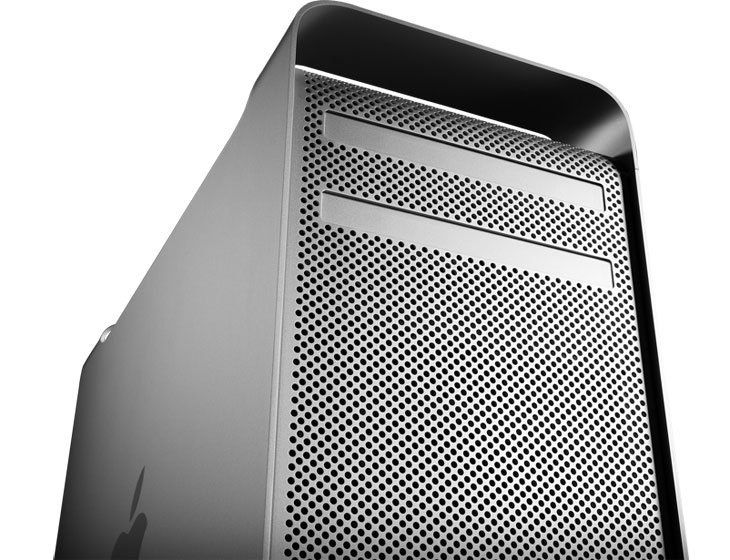
The Mac mini comes with ample storage of up to 500GB while the iMac and the Mac Pro offer terabyte capacities at 7200-rpm. Additionally, the Mac Pro is assembled with an open optical drive bay to accommodate an extra Superdrive.

Size and Design:
Can Mac Desktops Complement Your Style?

Apple has always blazed the design trail – never settling for the banal and constantly pushing the envelope of form and style. But it is not all about aesthetics; each element of design enhances the computer’s utility inside and out.

If you prefer a unit that requires a minimal space, you can choose between the Mac mini and the iMac. The former has a small form factor with the simplicity of the Zen-like design. It weighs a mere 3.0 pounds, making it light enough to transport anywhere in your home. Meanwhile, the iMac saves your space with its svelte all–in–one construction that combines the display screen and CPU into a single unit, liberating your desk from clutter and the ghastly tangle of wires.

The Mac Pro, on the other hand, is anything but small. With a height of 20.1 inches and a weight of over 40 pounds, the unit looks magnificent from the outside with its sleek, aluminum, industrial frame. But its interior is even more interesting due to its intelligent structure that makes DIY hardware upgrades quick and hassle–free.

Which Mac Desktop Suits Your Budget?

The cost always depends on your needs and demands. The most affordable way to get into the Mac experience is the Mac mini with a starting price of $599. Its minute dimensions and built-in wireless connectivity allow you to move the unit conveniently to any corner of your living space. With the Mac mini, you can always bring the Mac experience wherever you go.

The price of iMac, on the other hand, starts at $1199. Its unique all–in–one design and solid overall performance make it an incredibly attractive package for mainstream PC users who wants to switch to a Mac desktop.

The Mac Pro, which is purposely created to be a high performance machine, has the starting price of $2499 – a friendly rate for the many possibilities you can expect with this one ultimate desktop.

Now that you are well–equipped with the necessary information about Mac desktops, it will be easier for you to choose which Mac is best for you.
 

1940 E. Mariposa Ave, El Segundo, CA 90245 - 800.MACMALL
© 2011 MacMall - All rights reserved.